QR code menu or printed menu? Why the best answer is both
A QR code menu changes in seconds; paper never runs out of battery. We compare the strengths of each, explain when paper still matters and show how to keep both identical without double the work.
"QR code menu or paper menu?" is one of the questions we hear most. The short answer is that you do not have to choose. Each format solves different problems — what matters is that both say the same thing.
In this article we compare the two, explain when each makes most sense and show how to keep them identical without double the work.
What a QR code menu does better
It changes in seconds. A price, a sold-out dish, a new special: update it and guests see it straight away, on the same QR code.
No reprinting costs. Changing the price of a coffee does not mean printing a new menu.
It speaks several languages. Guests choose their language with one tap.
It shows more. Photos, descriptions, allergens dish by dish and tags such as vegetarian or gluten-free.
It follows your hours. The lunch menu appears at lunch and the dinner menu at dinner.
It gives you numbers. On the Pro plan you see how many people open the menu, when, and which dishes they look at most.
When paper still matters
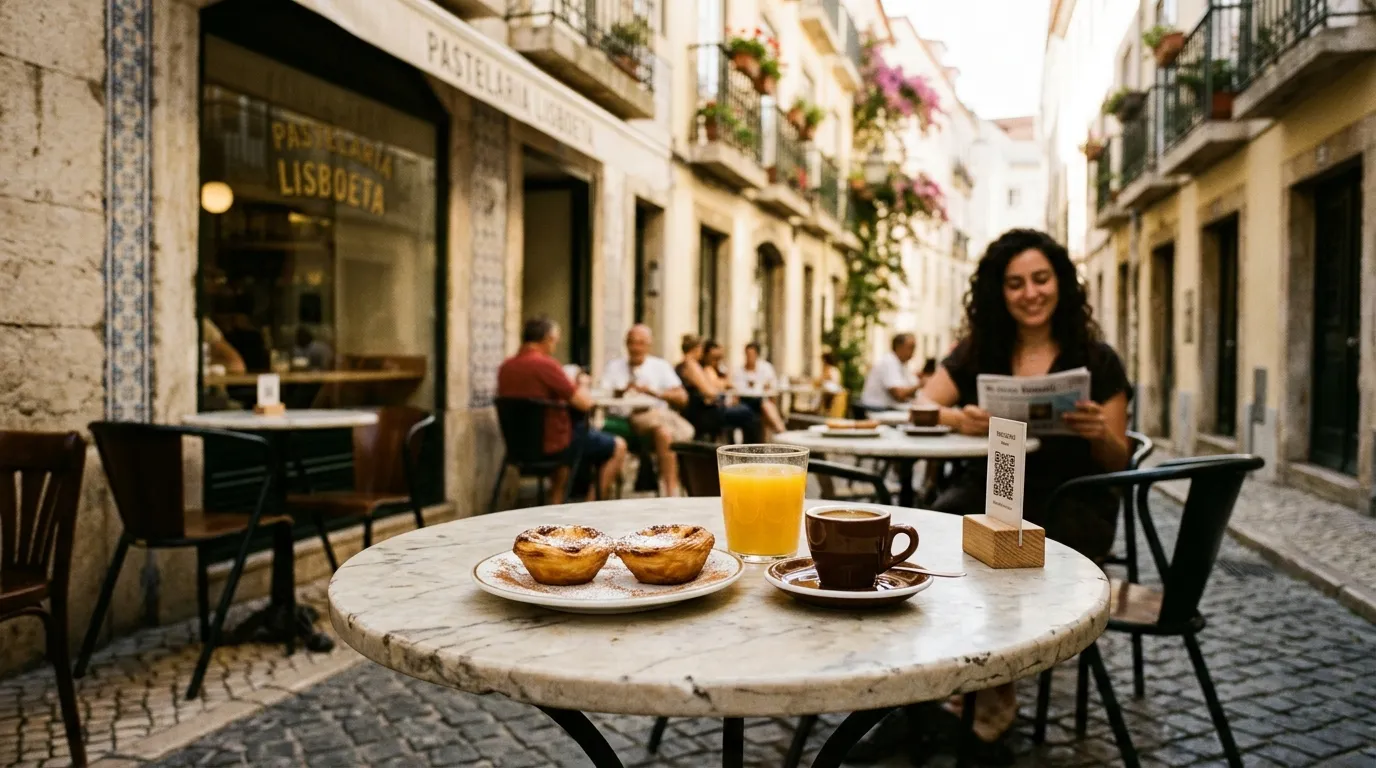
Guests who prefer paper. Not everyone likes reading a menu on their phone — and some have no battery or signal.
Windows and terraces. Passers-by decide on what they see posted by the door.
Counters and takeaway. A price list by the till answers faster than a QR code.
Special occasions. At a tasting dinner, a printed menu is part of the experience.
The real problem: two different versions
Paper itself is not the problem. The problem is a digital menu and a printed menu that do not match: the price changed in one but not the other, the dish taken off the menu is still printed, the new wine only appears on the QR code. Guests notice — and your team spends the service explaining.
One source, two formats
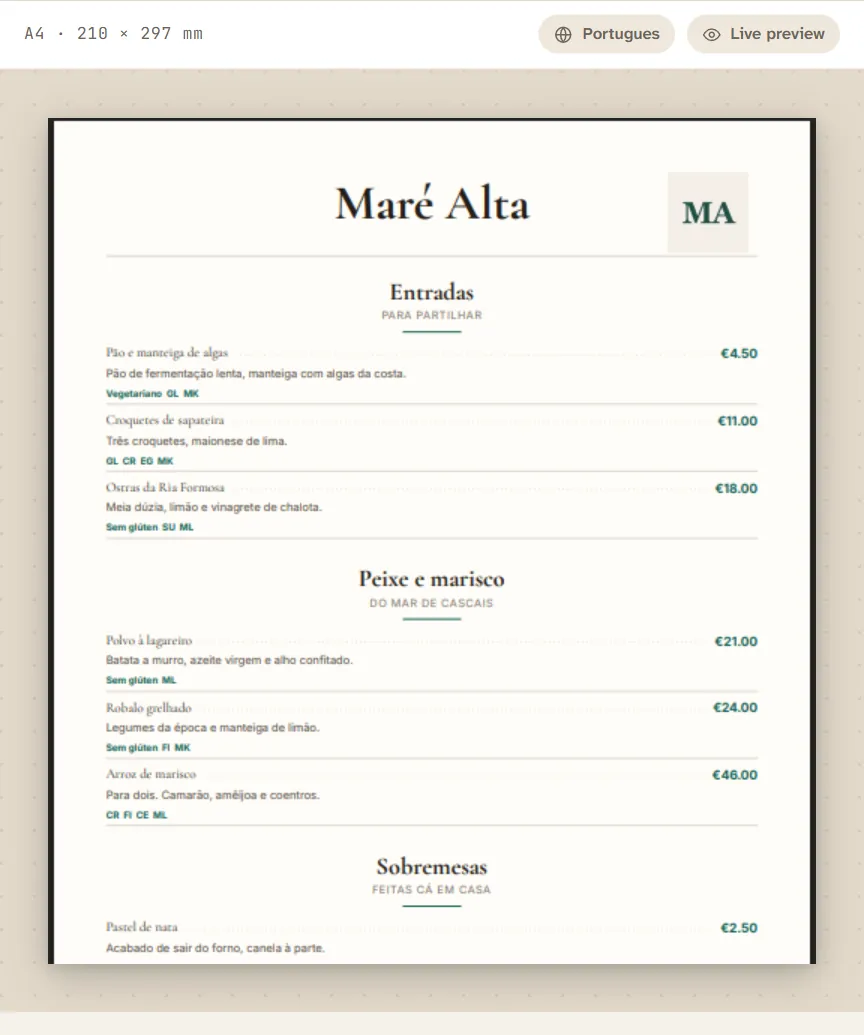
In Menuyo, the printed menu comes from the same digital menu. In Print menu, choose the format:
Full menu — A4, every category, across several pages if needed.
Specials card — A5, built from your menu of the day or specials.
Compact one-pager — a single A4 page in two columns.
Takeaway sheet — A5, names and prices, with the QR code for orders.
The PDF is generated from the digital menu: change a price, print again.
You can choose A4, A5 or US Letter, adjust the margins, decide which categories and which language to include, and add your logo, the allergen legend and a QR code to the live menu. There is a Refined style that is light on ink and another that uses your menu's colours and fonts. To save ink, there is also a grayscale version.
When a price changes, update it in Menuyo and generate the PDF again. Paper and digital say the same thing once more.
Best practice for printing your QR code
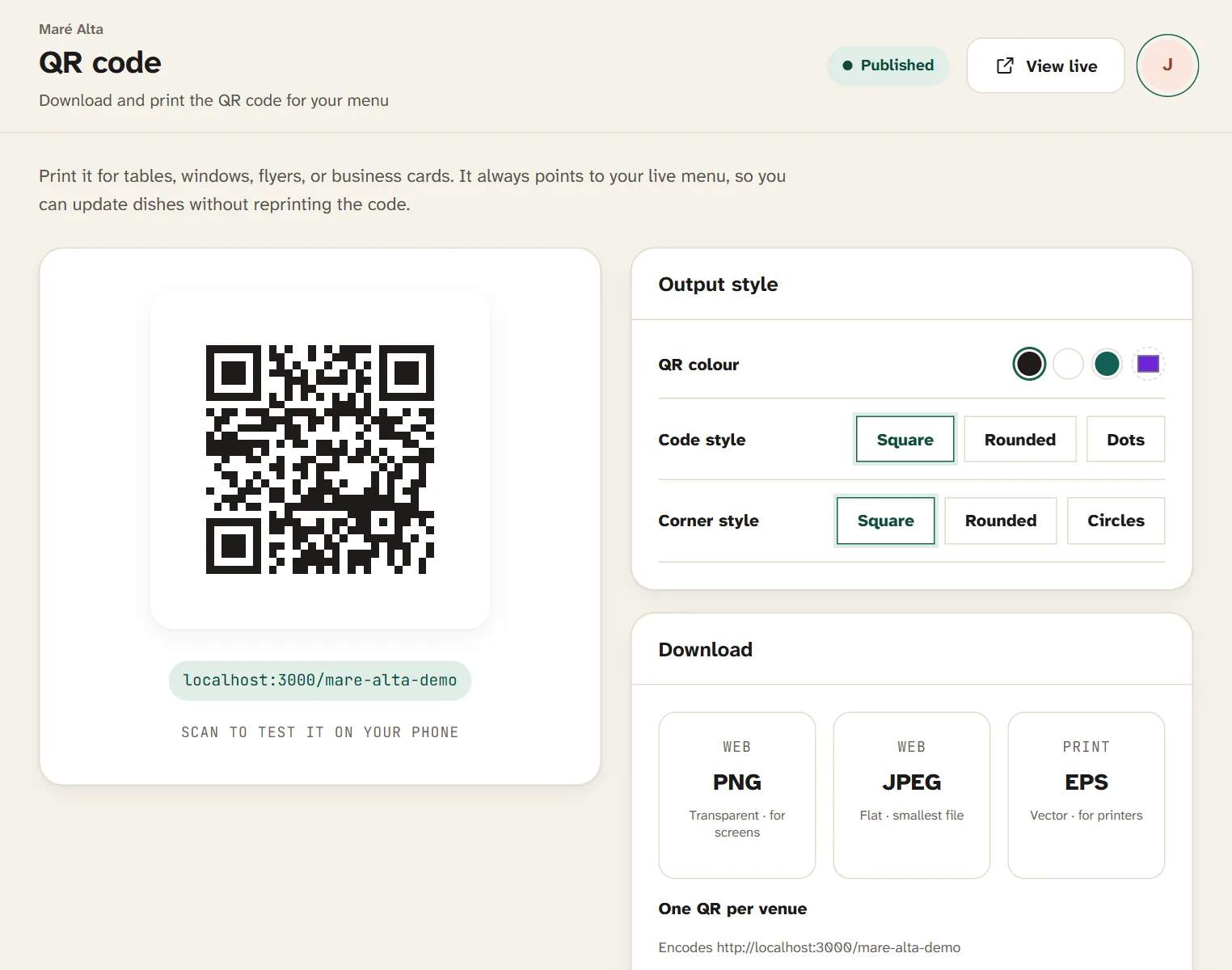
Download your QR code as PNG, JPEG or EPS — the format your print shop asks for.
Size. At least 2 to 3 cm per side on tables; larger if it is read from a distance, in a window or on a wall.
Contrast. A dark code on a light background. Avoid colours that are close to each other.
White margin. Always leave clear space around the code — Menuyo already includes it in the files.
An inviting line. "See our menu" or "Menu in 6 languages" gets more people to point their camera.
Test before printing. Try it with two or three different phones.
Use the right file. PNG for screens and documents, EPS for the print shop.
Most important of all: print a QR code that never has to change. In Menuyo, the code always points to the live menu — change dishes, prices and photos as often as you like.
In short
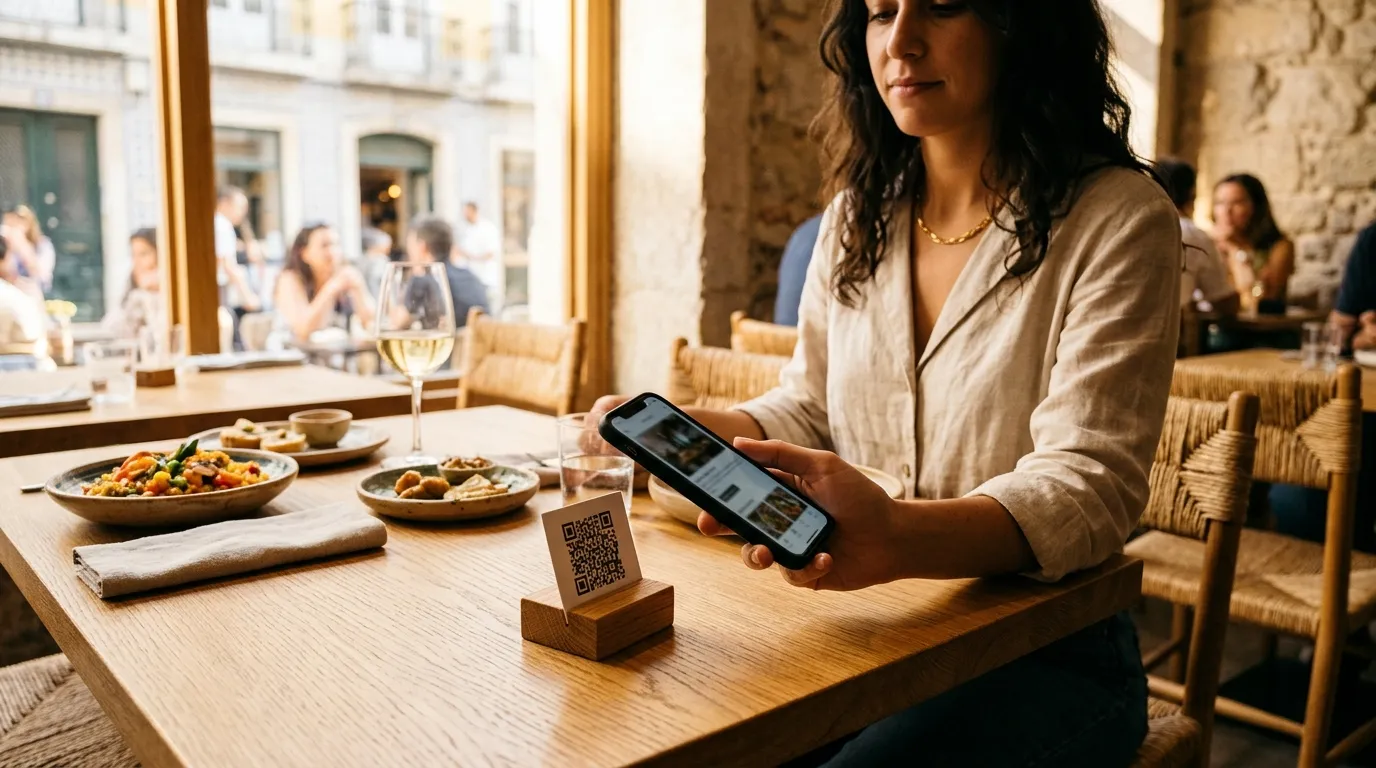
Use the QR code on your tables for the full menu, always up to date and in several languages. Use paper in the window, at the counter, for takeaway and for anyone who asks. And manage both from the same source.
Try Menuyo free for 15 days — no card needed. The print menu and QR code are included in Starter; on Pro you can remove the "Menuyo" mention from the PDF. See how to get started in the step-by-step guide.